How to Upload Orders for Basket Trading
Please see this video for a brief walkthrough of the Basket Trader functionality.
To enter Basket trades, or to upload any orders, use the Order Book menu:
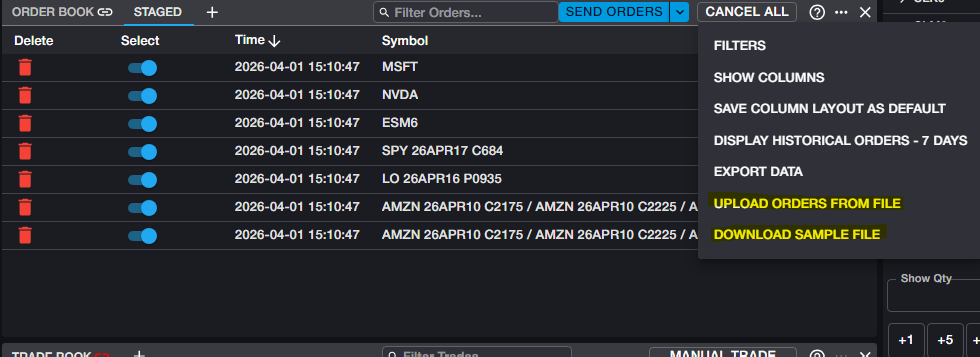
You may also download a sample file from the menu in order to make sure that the format is acceptable.
For greater detail on acceptable formatting, see the Basket Trader section of the Order Book article here.
Once orders have been uploaded from your csv file, they will be displayed in a new Order Book tab, labelled 'Staged.'
By default, all orders are selected, but you may unselect individual orders if you do not want to send all of them. Orders may also be amended (price and quantity) from the Staged tab before sending them by clicking 'Send Orders.'
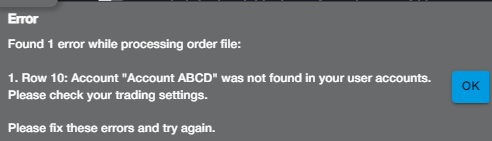
If any lines of the upload file contain malformed or incorrect data, you will receive an error message detailing the offending row from the file and the changes that need to be made.