
Display Settings
Use Settings and Popout in the top bar to personalize how Rival Risk looks and how navigation opens. These choices apply across pages in your browser and are remembered for later visits.
Related articles: Navigation · Working with Grids · Market Risk Views
Where to find Settings
1. Look at the top bar (Rival logo, page title, page actions).
2. On the right, click the gear icon (tooltip: Settings).
3. The Settings panel opens. Click outside it or the X to close.
Next to Settings is the Popout control (tooltip: Popout to new window)—covered below.
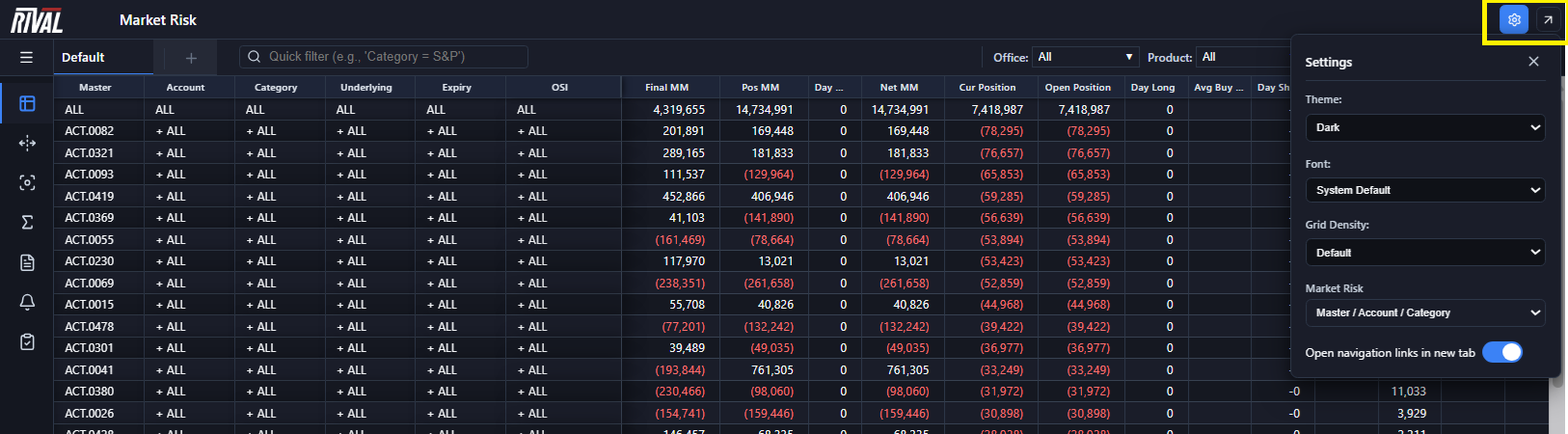
Settings panel
Depending on the page, Settings can include:
| Control | Always / when |
|---|---|
| Theme | Always |
| Font | Always |
| Grid Density | Always |
| Market Risk | Only on Market Risk pages /live… or home live view) |
| Open navigation links in new tab | Always |
Changes apply immediately. Theme, Font, Grid Density, and the new-tab toggle are saved in the browser for this site.
Theme
Theme sets colors for the shell, grids, and panels.
| Option | Look |
|---|---|
| Light | Bright backgrounds, dark text |
| Slate | Neutral gray UI |
| Dark | Dark backgrounds, light text (logo switches to the light mark) |
| Sepia | Warm paper-style palette |
If you have never chosen a theme, Rival Risk may start from your system light/dark preference, then remember your last selection.
Font
Font changes the typeface used in the app UI.
| Option | Typical use |
|---|---|
| System Default | Match the OS (default) |
| Monospace | Align numbers / denser tables |
| Serif | Traditional print-like text |
| Inter | Clean sans-serif |
| Roboto | Clean sans-serif |
| Open Sans | Clean sans-serif |
Pick what is easiest to read for long monitoring sessions; switch anytime.
Grid Density
Grid Density controls row height on data grids.
| Option | Effect |
|---|---|
| Compact | Shorter rows — more rows visible |
| Default | Balanced (default) |
| Comfortable | Taller rows — easier to click and read |
Use Compact for large books; Comfortable on high-DPI screens or when selecting cells often. See also [Working with Grids](#).
Market Risk (view selector)
On Market Risk pages only, Settings also shows Market Risk—a dropdown of hierarchy views (same destinations as the sidebar):
- By Portfolio — Trading Group / Portfolio / Underlying
- By Symbol — Underlying / Expiry / OSI
- By Master — Master Account / Trading Group / Portfolio
- By Office — Master / Account / Category
Changing it navigates this window to that view and remembers the choice for this window (and as a default for new windows). Other already-open Market Risk windows are not forced to switch.
For what each view is for, see [Market Risk Views](#).
Open navigation links in new tab
Toggle: Open navigation links in new tab.
| State | Behavior |
|---|---|
| On (default) | Sidebar (and similar nav actions that respect this setting) open the target in a new browser tab/window when possible |
| Off | Navigation replaces the current page |
Turn On when you want Market Risk, Run Scenarios, Alerts, and other tools side by side. Turn Off for a single-window workflow.
> Note: Some flows always use a dedicated popup (for example Slide Details or Popout). This toggle mainly affects normal sidebar-style navigation.
Popout
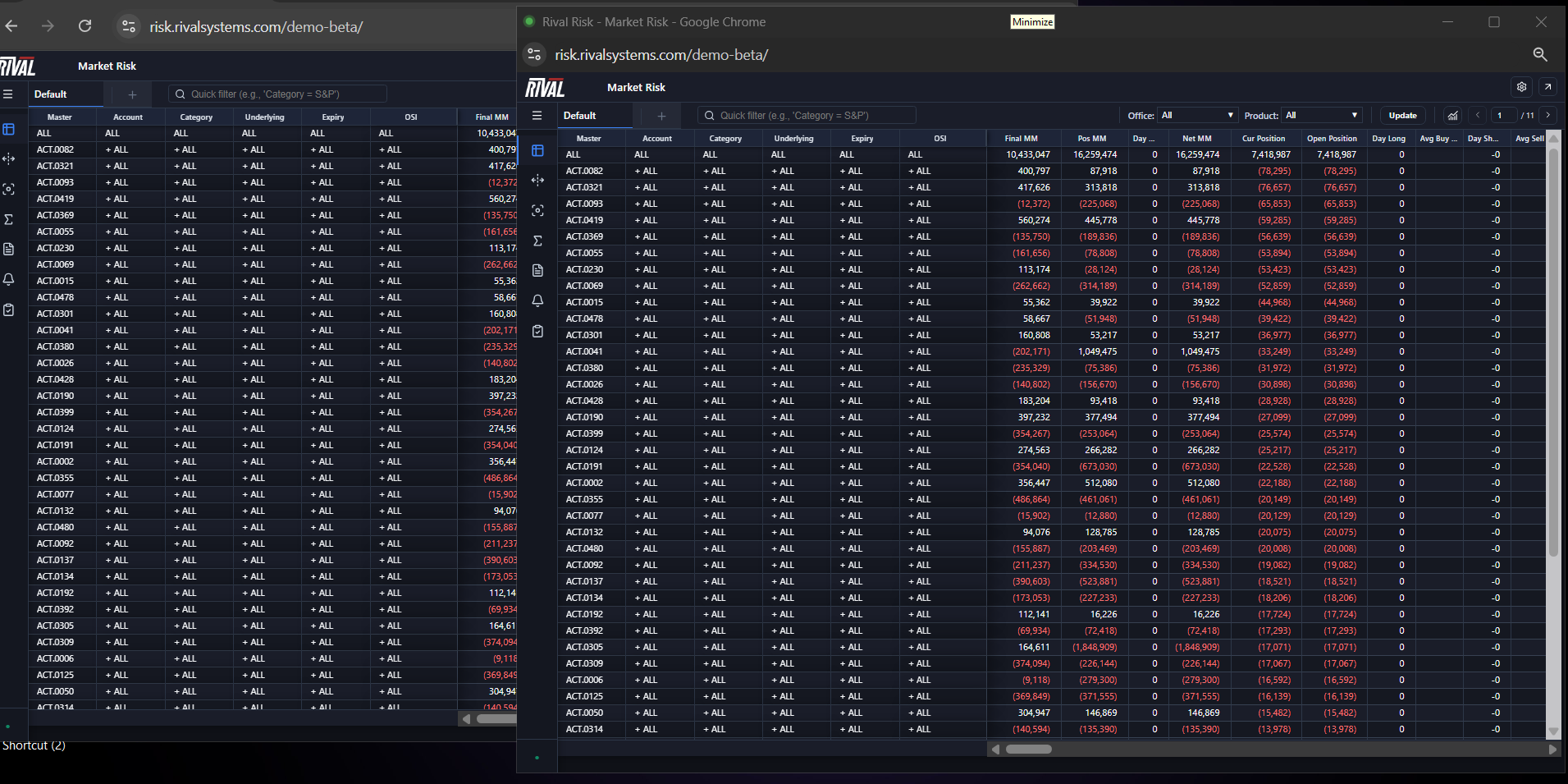
Click Popout (arrow icon) to open the current page in a new browser window (about 1200×800, resizable).
Typical uses:
- Keep one Market Risk book on a second monitor
- Run Scenarios in one window and Alerts in another
- Leave the main shell free while a page stays focused
If the browser blocks the window, Rival Risk shows: Popup blocked. Please allow popups for this site.
Popout opens a copy of the current URL (session token preserved). Close the popout when you are done; the original window is unchanged.
What is remembered
| Preference | Remembered? |
|---|---|
| Theme | Yes (this browser / site) |
| Font | Yes |
| Grid Density | Yes |
| Open navigation links in new tab | Yes (defaults to On) |
| Last Market Risk view | Yes for new windows; current window also keeps its own choice |
Clearing site data for Rival Risk resets these to defaults.
Tips
- Prefer Dark or Slate in low light; Light or Sepia in bright rooms.
- Pair Compact density with Monospace if you scan many numeric columns.
- Leave Open navigation links in new tab on for risk managers who keep several views open.
- Use Popout for a dedicated slide or live book; use the new-tab toggle for everyday sidebar jumps.
Troubleshooting
| Symptom | What to try |
|---|---|
| Theme / font didn’t stick | Confirm you are on the same browser profile; avoid private mode if you need persistence. |
| Grid still looks cramped | Set Grid Density to Comfortable and widen the window. |
| Sidebar opens in the same tab | Turn **Open navigation links in new tab** On. |
| Popout does nothing | Allow popups for the Rival Risk site; try again. |
| Market Risk option missing in Settings | Open a Market Risk page first; that control only appears there. |
Related articles