
Working With Grids
Most Rival Risk pages use an interactive grid to show live risk, scenarios, alerts, trades, and reports. This article covers the shared controls you’ll use across the app: sorting, filtering, columns, export, density, paging, and context actions.
Page-specific tools (for example, Run Slide or alert wizards) are covered in their own articles.
Grid basics
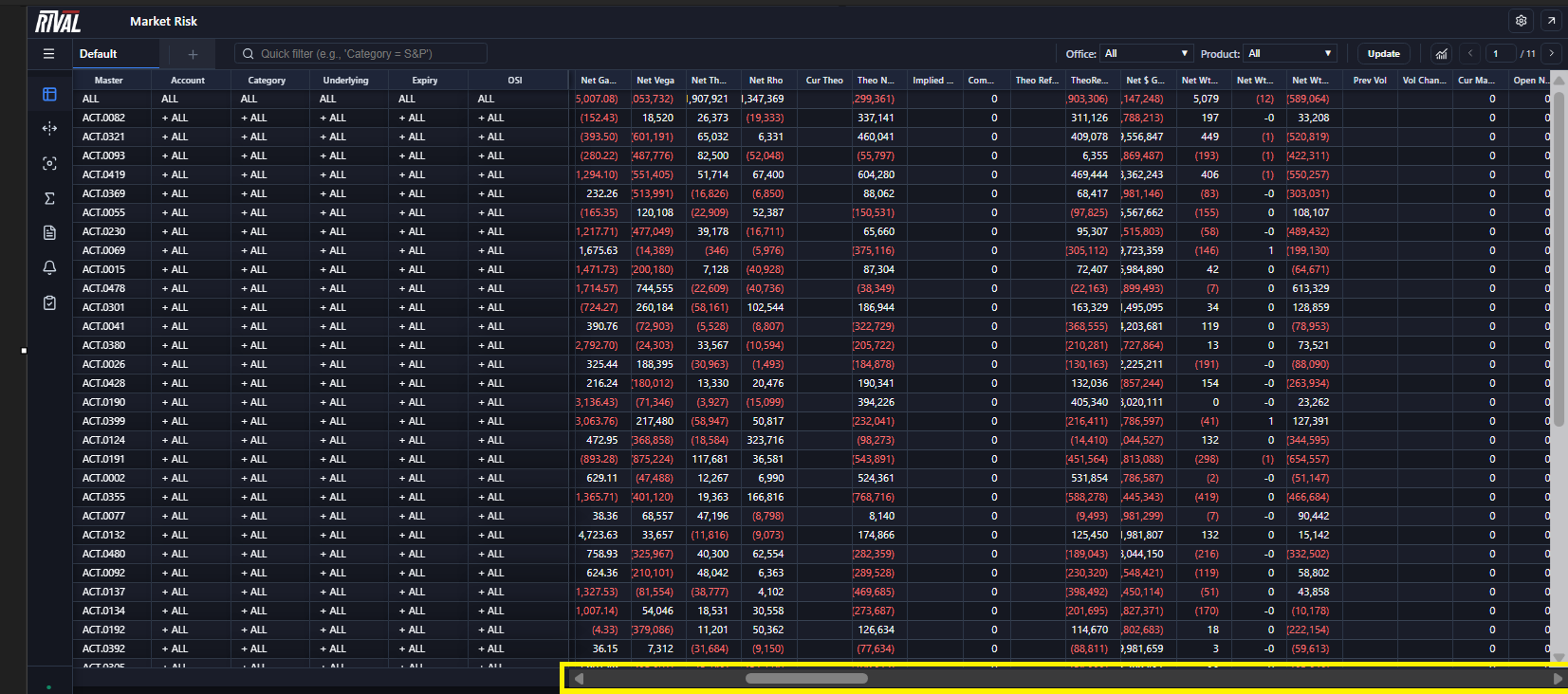
A typical grid has:
- Header row — column names, sort indicators, and filter icons
- Frozen columns (left) — hierarchy or key identity columns that stay visible while you scroll horizontally
- Scrollable columns — risk and PnL measures you can show, hide, resize, and reorder
- Data rows — values that update as the server sends changes
- Scrollbars — horizontal and vertical as needed
> Tip: If the connection status in the sidebar is not Connected, the grid may stop updating until the connection recovers. See [Navigation](#).
Sorting
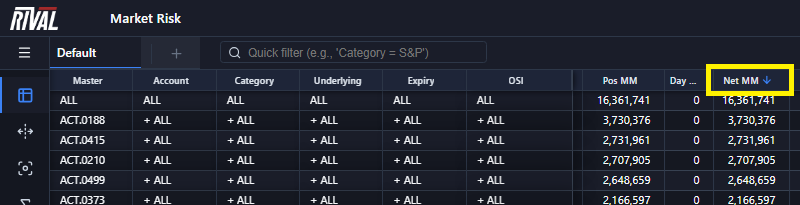
1. Click a column header (not the filter icon) to sort by that column.
2. An arrow shows the direction:
- Up — ascending
- Down — descending
3. Click the same header again to reverse the sort (behavior depends on the page/server sort cycle).
Sorting does not change which columns are visible; it only changes row order.
Filtering
Open a column filter
1. Click the filter icon in a column header.
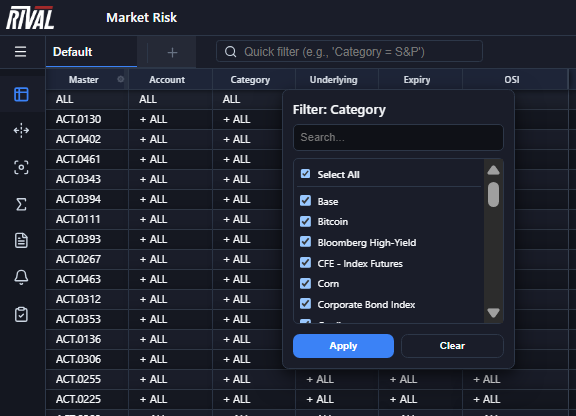
2. The Filter popup opens for that column Filter: <column name>).
Filters differ slightly for text/list columns and numeric columns.
Text and list filters
For many text columns you can:
1. Use Search... to narrow the value list.
2. Check or uncheck values.
3. Use Select All for the values currently shown in the list.
4. Click Apply to filter the grid, or Clear to remove the filter for that column.
On columns with a very large number of distinct values, the popup may switch to a search-to-add mode:
- Include / Exclude — keep only selected values, or hide them
- Column text filter — optional “Contains…” substring filter
- Search to add values… — type to find values, then check them
- Add all shown / Remove all shown — bulk edit the current search results
- Apply, Clear, and Cancel
If no values are selected in include mode, all rows remain visible for that column.
Numeric filters
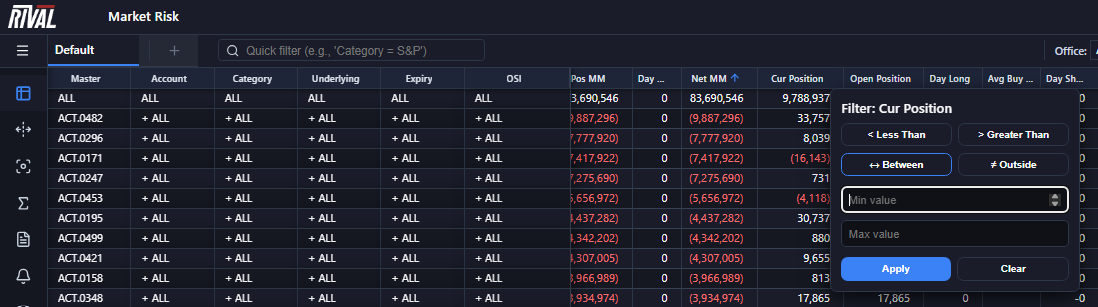
For numeric columns, choose an operator, enter values, then Apply:
| Operator | Meaning |
|---|---|
| < Less Than | Values below the number you enter |
| > Greater Than | Values above the number you enter |
| ↔ Between | Values between Min and Max |
| ≠ Outside | Values outside Min and Max |
Press Enter in a value field to apply quickly.
See and clear active filters
When one or more filters are active, a filter badge appears (for example, 2 Filters):.-[;;
- Hover the badge for a short summary of the criteria.
- Click the X on the badge to clear all filters.
- On Market Risk, an Alert action may appear on the badge so you can create an alert from numeric filter criteria.

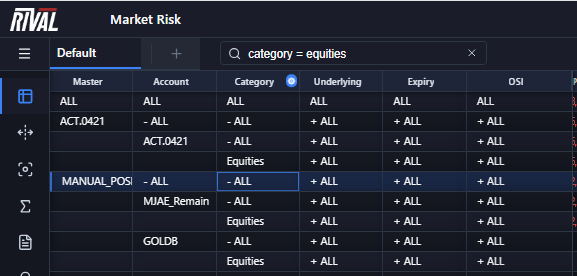
Quick filter (natural language)
On Market Risk pages, the toolbar includes a Quick filter box.
Examples of useful phrases:
- Category = S&P
- Other simple Column = Value style filters supported by the page
Steps:
1. Type a filter phrase in Quick filter.
2. Click Search (or press Enter).
3. Clear the box / use clear to remove the quick filter and related column filters.
> Note: Quick filter is a fast way to apply common filters. For precise multi-value or numeric ranges, use the column filter popup.
Column chooser
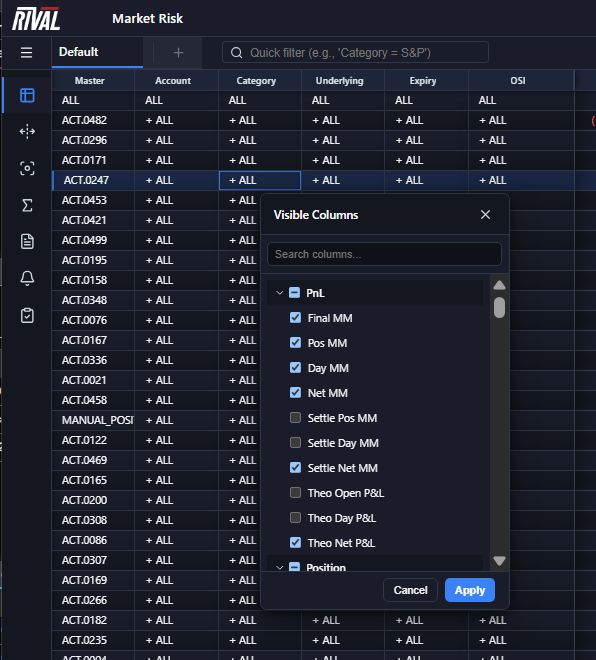
Use Column Chooser to show or hide measure columns.
Open Column Chooser
Common ways (depending on the page):
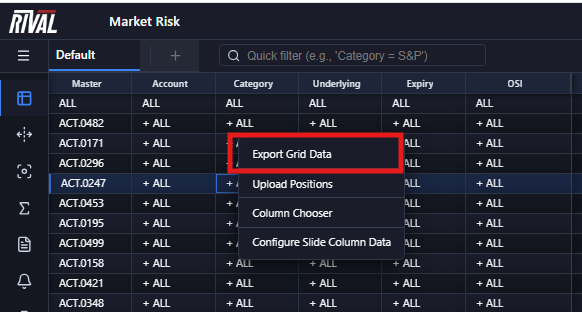
- Right-click a grid cell and choose Column Chooser from the radial/context menu
- Use a page action labeled Column Chooser (where available)
Choose visible columns
The popup title is Visible Columns.
1. Use Search columns... to find a column by name.
2. Expand or collapse column categories (ungrouped columns appear under Miscellaneous).
3. Check columns to show; uncheck to hide.
4. Click Apply to save, or Cancel to discard.
Rules to know:
- Frozen columns cannot be hidden (they stay checked/disabled).
- Columns with an active filter generally cannot be hidden until you clear that filter.
Resize and reorder columns
Resize
1. Move the pointer to the right edge of a column header until the resize cursor appears.
2. Drag to widen or narrow the column.
Reorder
1. Click and drag a column header left or right.
2. Drop it in the new position.
> Tip: Avoid starting a drag from the filter icon or the resize handle; those controls are reserved for filter and resize.

Export grid data
Many pages let you export the current grid:
1. Right-click in the grid (or open the page’s actions menu).
2. Choose Export Grid Data.
3. Save the file when your browser prompts you.
Export reflects the data currently loaded/visible for that page session. If a page has no export action, that feature is not available there yet.
Grid density
Control how tightly rows are spaced:
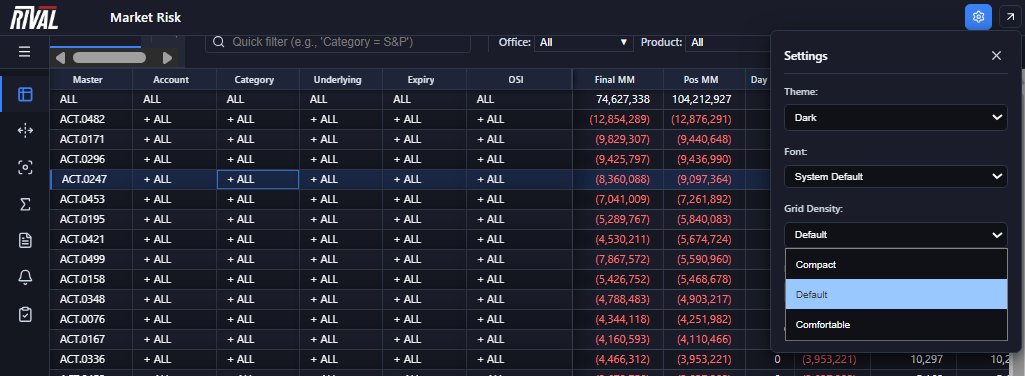
1. Open the top-bar Settings (gear).
2. Change Grid Density:
- Compact — more rows on screen
- Default — standard spacing
- Comfortable — taller rows, easier to read
Density applies across grids and is remembered for your browser.
Related Settings options (**Theme**, Font) also affect readability. See [Navigation](#).
Paging
Some Market Risk views support paging when the result set is large.
Paging controls typically include:
- Previous page
- Current page number (editable) and total pages (for example, 3 / 12)
- Next page
Type a page number and press Enter or leave the field to jump to that page.
> Screenshot: Paging controls in the Market Risk toolbar.

Context menu (radial menu)
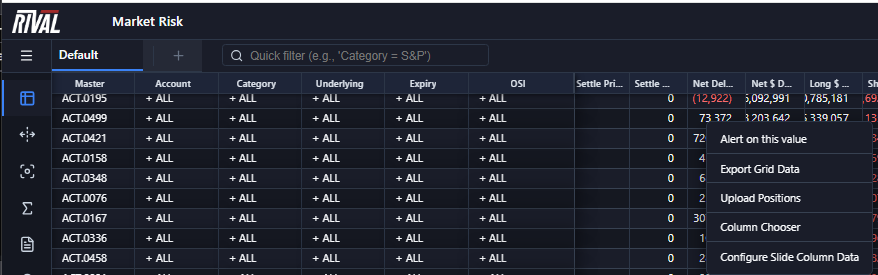
On many grids, right-click a cell to open a radial/context menu. Available actions depend on the page and the cell you clicked.
Common Market Risk actions include:
| Action | Typical use |
|---|---|
| Column Chooser | Show/hide columns |
| Export Grid Data | Download grid data |
| Set Prices | Adjust prices for the selected context (when enabled) |
| Set Open Position | Adjust open position (when enabled) |
| Custom Category | Manage custom categories (views that support it) |
| Account Settings | Account overlay settings (views that support it) |
| Upload Positions | Upload position data (when enabled) |
| Configure Slide Column Data | Configure slide-related column data |
| Alert-related items | Create or jump to alert workflows from the cell context |
Click outside the menu or choose an action to dismiss it.
Empty and loading states
Loading
When a page is waiting for column definitions or data, a wait/loading overlay may appear over the grid area. Wait until it clears before interacting.
No data
If there is nothing to show, you may see an empty state such as:
- No data available
- There is no data to display at this time.
What to try:
1. Confirm sidebar status is Connected.
2. Clear filters (filter badge X, or Clear in the filter popup).
3. Clear Quick filter if you used one.
4. Widen your account/product selection or run criteria on that page.
5. Refresh/reload the page if the connection was interrupted.
Practical workflows
Focus on one book or symbol
1. Open the relevant Market Risk view.
2. Filter the hierarchy or symbol column.
3. Optionally hide unused measure columns in Column Chooser.
4. Sort by the risk measure you care about most.
Compare a few key measures
1. Open Column Chooser.
2. Hide everything except the measures you need.
3. Set Grid Density to Compact if you need more rows visible.
Clean up after exploring
1. Clear the filter badge.
2. Clear Quick filter.
3. Restore important columns in Column Chooser.
4. Return Grid Density to Default if needed.
Quick reference
| Task | How |
|---|---|
| Sort | Click column header |
| Filter one column | Click filter icon in header → Apply |
| See active filters | Filter badge (for example, 2 Filters) |
| Clear all filters | Filter badge X |
| Quick filter | Toolbar Quick filter → Search |
| Show/hide columns | Column Chooser → Apply |
| Resize column | Drag header edge |
| Reorder column | Drag header |
| Export | Context menu → Export Grid Data |
| Row spacing | Settings → Grid Density |
| Change page | Paging controls (where shown) |
| More actions | Right-click cell |
Related articles
- Market Risk Column Definitions
- Creating and Managing Alerts